Portraits & selfies
Clear photobombers and background distractions.
AI Photo Object Remover
Explore ways to remove unwanted objects, people, text and distractions from your photos.
Explore photo cleanups for portraits, landscapes, product shots, screenshots and more.
Clear photobombers and background distractions.


Take crowds and clutter out of scenic shots.
Tidy labels, props and unwanted details.


Clear text, stickers and overlays.


Prepare a cleaner image to share.
Don't let a small distraction take attention away from a great photo. Explore how an AI-assisted editor can help you remove unwanted objects, power lines or clutter and blend the edited area with its surroundings. For a closer touch-up, continue to the image editor and review your photo there.


Whether a passerby crosses your portrait or a busy scene distracts from a vacation shot, a person removal workflow can help you focus on the subject. Review the result carefully, especially around complex scenery, so the background stays believable.
Unwanted marks and date stamps can pull attention from an image you own or have permission to edit. Explore a photo cleanup workflow for your own material, and check the edited details before sharing. For video, choose an editor that specifically supports video files and respect the creator's rights.


Old date stamps, captions and stickers can get in the way of a photo. A text cleanup edit starts by identifying the area you want changed, then checking whether nearby textures still look natural. It's useful for personal photographs, screenshots and visuals you have the right to modify.
When preparing your own product photography or marketing assets, small visual details can make an image feel cluttered. Use a careful cleanup edit to refine authorized images, then inspect edges, reflections and texture before using the result.


A quick guide to making a thoughtful photo edit.
Continue to the editor and select the photograph you want to change.
Identify the people, text or objects that distract from your subject.
Look closely at the replacement background and make any needed refinements.
Export your finished image using the options available in the editor.

Different photos call for different cleanups. Here are a few ways people describe the edits they need.
“I wanted the focus back on a property listing, not the bin by the curb. A clean background made the whole frame easier to read.”
Marcus T.
Real Estate Photographer
“On a trip, I often find someone crossing an otherwise lovely landscape. Planning the edit around the scenery helps me keep the memory.”
Sarah Jenkins
Travel Photographer
“Product photographs work best when the surroundings are simple. I always check the edited edges and reflections before publishing.”
David L.
Online Shop Owner
“A caption was covering the part of a photo I wanted to use. Describing exactly what to clear was the easiest place to start.”
Elena Rodriguez
Social Media Manager
“Removing a line from a sunset photo is only half the job. I want the colour and texture of the sky to look consistent afterward.”
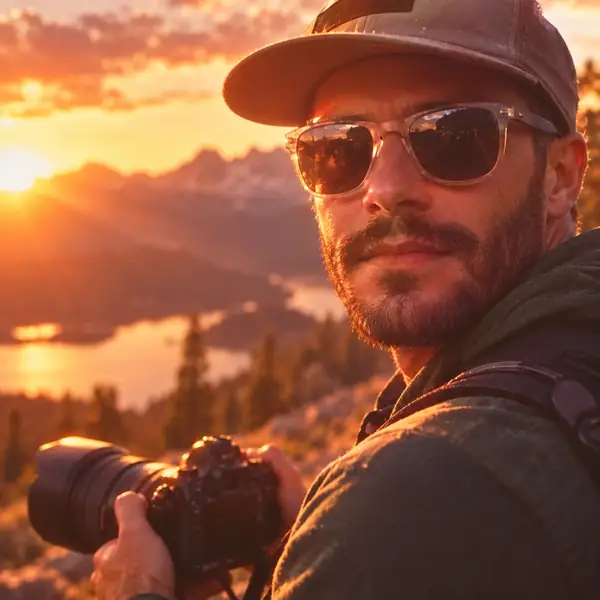
Kevin P.
Photography Hobbyist
Answers to common questions about planning an object-removal edit.
An object-removal editor uses the surrounding image as context when filling an area you select. Inspect the result at full size, particularly where patterns or edges cross the edit.
You can plan an edit around an unwanted passerby. Simple backgrounds are generally easier to restore than detailed architecture or overlapping people.
Export size depends on the editor and the image you provide. Check the available download settings before saving a version for print or other high-resolution uses.
This page hands you off to the editor. Any account or access requirements are shown there before you use its editing features.
You can describe a text or mark cleanup for an image you own or are permitted to edit. Small lettering on a plain background may be easier to address than text covering fine detail.
The examples here focus on still photographs. If you need to edit a video, confirm that your chosen editor supports video files before uploading.
Common photos are saved as JPG, PNG or WebP. Check the editor's upload panel for its current supported formats and file-size limits.
Work on a small area first and compare it with the original. Repeating patterns, shadows and straight lines are worth checking particularly closely.
Uploads happen at the editor, not on this page. Read its privacy information before submitting sensitive or personal photographs.
Yes. Pick an example or continue to the editor from your phone, then check its available upload and editing controls.
Take an image to the editor and make the details you care about stand out.
Contact us
29 Mayflower Gardens, 31 Mayflower Place
Singapore 568894
Please contact the editor's support team directly for questions about its service.